Network configuration management (NCM) ensures your network devices – like routers, switches, and firewalls – stay functional and secure. Misconfigurations can lead to costly outages, with 54% of major incidents in 2023 costing over $100,000. This article highlights common issues, like IP conflicts, wireless mismatches, and VPN errors, and provides straightforward fixes. It also compares tools like ManageEngine, rConfig, and Ansible to help you automate and streamline NCM processes.
Key Takeaways:
- IP Issues: Fix duplicate addresses with proper DHCP assignments and use
ip dhcp excluded-addressfor critical devices. - Wireless Problems: Use consistent AP settings, avoid overlapping channels, and limit SSIDs to reduce interference.
- VPN Errors: Maintain backups, use TACACS+ for authentication, and test changes in a mirrored environment.
- DNS & Hardware: Regularly update firmware, validate DNS settings, and automate backups with encryption.
Tools Comparison:
- ManageEngine NCM: Multi-vendor support, real-time change detection, and compliance templates.
- rConfig V8: AI-driven troubleshooting, lifecycle management, and MSP-focused architecture.
- Ansible: Agentless, YAML-based automation for scalable networks.
Automation, backups, and monitoring are essential for reducing errors and downtime. Choose the right tool to keep your network stable and efficient.
Network Configuration Manager Free Training – November 12, 2024 – Part 1 (Season 4)
sbb-itb-6893d99
Common Network Configuration Problems and How to Fix Them
Even in well-maintained environments, network configuration errors can cause significant disruptions. Recognizing these common issues and knowing how to address them allows administrators to act quickly and minimize downtime.
IP Configuration Problems and Fixes
Duplicate IP addresses often result from overlapping subnets or incorrectly assigned static addresses. To fix this, reserve critical device addresses using the ip dhcp excluded-address command.
If you encounter a "POOL EXHAUSTED" error due to DHCP pool exhaustion, consider shortening lease durations or expanding the pool. A good practice is to reserve specific ranges: assign addresses like .1 or .2 for routers, .5–.9 for switches, and use .10–.254 for DHCP clients.
For DHCP relay agent failures, configure the IP helper-address on the router interface and enable ip dhcp smart-relay to accommodate additional subnets.
Additionally, enabling spanning-tree portfast on access ports can prevent delays in DHCP forwarding, ensuring quicker network connectivity.
These steps address foundational IP issues, but the same level of precision is needed for wireless, VPN, and hardware configurations.
Wireless Network Configuration Problems and Fixes
In wireless networks, BGN mismatches in mesh setups can disconnect access points. To fix this, ensure all APs share consistent names.
Connectivity issues may also arise if the access point and client don’t use the same wireless security standard. Double-check compatibility to maintain a stable connection.
To avoid interference, stick to non-overlapping channels – like 1, 6, and 11 on the 2.4 GHz band – and disable legacy 802.11b rates to improve performance.
Clients often choose their own access points, which can lead to poor roaming decisions. Adjusting transmit power or setting a minimum bit rate can guide clients to better connections.
Finally, limit active SSIDs per radio to one or two to cut down on unnecessary beacon traffic and improve efficiency.
By addressing these wireless issues, you strengthen your network’s reliability – a crucial factor for other configurations like VPNs and hardware.
VPN Configuration Errors and How to Resolve Them
Unauthorized changes to VPN settings can disrupt services. Implementing TACACS+ for authentication and NTP for timestamp accuracy helps create reliable audit trails.
Always maintain three to five previous working configurations to quickly roll back in case of VPN outages.
During migrations, prevent authentication lockouts by removing security commands from backup files before restoration.
Automate backups of running configurations to a central TFTP or FTP server using tools like Cisco Kron. Test upgrades in a mirrored environment before deployment to avoid surprises.
DNS Configuration Problems and How to Fix Them
DNS misconfigurations can disrupt name resolution, halting key network services. Verify that all devices have the correct DNS server addresses and ensure forwarders are properly configured. Keep DNS records accurate and up to date, especially for critical services. Tools like nslookup or dig can quickly pinpoint errors during troubleshooting.
Hardware Configuration Errors and Fixes
Outdated firmware is a common culprit for hardware issues. Regular firmware audits help identify and resolve compatibility problems before they escalate.
Before deploying updates, test them in a non-production environment to catch any potential issues caused by untested patches. Configuration validation tools are also useful for automatically detecting duplicate IP addresses or protocol mismatches across your network.
Keep backups of configurations with timestamps and user attribution. This practice not only speeds up troubleshooting but also ensures accountability.
Addressing these hardware challenges is a key part of maintaining a robust network setup. By mastering these common issues, you’ll be well-equipped to handle the complexities of network configuration management.
How to Prevent Configuration Problems
Avoiding configuration issues starts with building consistency across your network, maintaining reliable backups, and using monitoring tools effectively. These practices create a proactive framework, tying together standardization, backup routines, and monitoring strategies.
Standardizing Network Configurations
Keeping software versions consistent across similar devices helps prevent compatibility problems and reduces unexpected interface behavior. By using baseline configuration templates tailored to each device type, you can ensure that global commands, protocol settings, and security measures are uniform across your network. Formal IP addressing processes, which avoid overlapping ranges and duplicate assignments, further enhance this standardization. Storing these verified baselines in version-controlled repositories like Git provides a reliable fallback when issues arise. This not only simplifies troubleshooting but also strengthens the overall stability of your network.
Adopting structured naming conventions – such as including location, device type, and purpose – can significantly speed up inventory management and troubleshooting.
"Configuration management is the cornerstone of the network management system and of the network lifecycle." – Cisco
For larger deployments, use a staged rollout strategy. Start by applying changes to 5-10% of your devices, monitor their performance, and then expand in increments of 25%. This method has enabled organizations to complete automated software upgrades for as many as 2,500 devices in under two weeks.
Scheduling Backups and Version Management
Keep three to five previous working versions of each device configuration, labeled clearly to distinguish recent updates from stable baselines. These backups are critical for quick recovery and minimizing downtime.
Schedule backups based on device category – for example, core routers at 2:00 AM and access switches at 3:00 AM – to avoid network congestion. Use Config Integrity Checks with regex patterns to ensure backups are complete and accurate.
"Your configs are your documentation. When onboarding new team members or troubleshooting legacy setups, backed-up configurations provide the ground truth." – rConfig
Always encrypt backups at rest to safeguard sensitive credentials and network details from unauthorized access.
Using Configuration Monitoring Tools
With standardized and backed-up configurations in place, real-time monitoring tools are essential for detecting and correcting configuration drift. Tools like ManageEngine and SolarWinds can track changes, trigger automatic rollbacks, and enforce role-based access controls.
Implement role-based access control to restrict who can make configuration changes, and require approvals for operator-level updates. Set up instant alerts via email or SNMP for any configuration changes, and use version history to enable automated rollbacks when errors occur.
For more complex updates, test everything in network simulation labs like EVE-NG or GNS3 before deploying to production hardware. A three-tier rollback strategy – starting with automated recovery scripts, followed by timestamped backups, and ending with verified templates – ensures you always have a reliable way to restore stability.
Network Configuration Management Tools Comparison
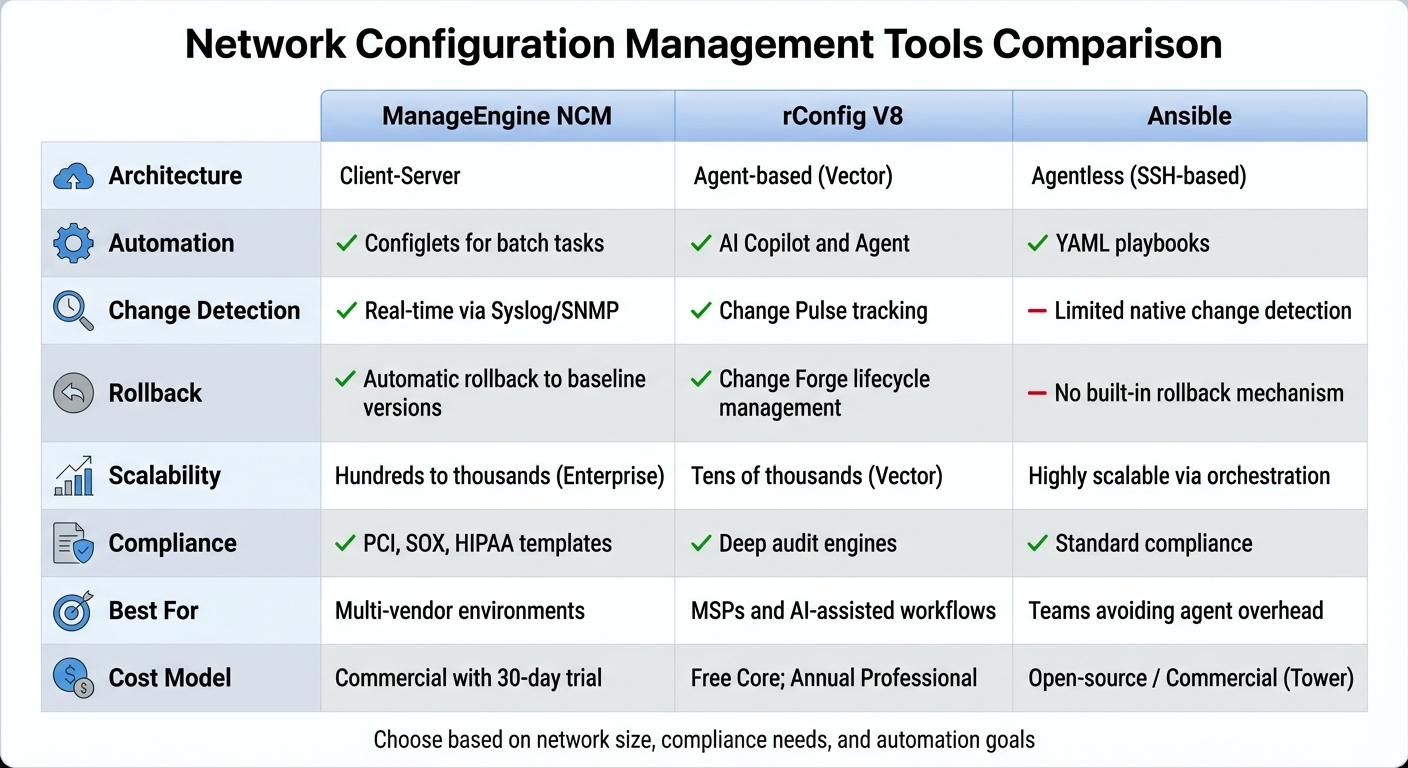
Network Configuration Management Tools Comparison: ManageEngine vs rConfig vs Ansible
When choosing a network configuration management tool, it’s essential to consider factors like the size of your network, compliance requirements, and the level of automation you aim to achieve. The tools outlined below incorporate best practices to help you manage and secure network configurations effectively. While all of them cover aspects like change tracking and automated rollbacks, their methods and capabilities vary.
ManageEngine Network Configuration Manager takes a "Triple C" approach, focusing on change, configuration, and compliance management. It supports multi-vendor environments, including devices from Cisco, Juniper, and HP. With "Configlets", it automates repetitive tasks and executes batch commands, while real-time change detection via Syslog and SNMP traps ensures you’re always updated on modifications. Additionally, it integrates with Password Manager Pro for credential security. A 30-day free trial is available, and pricing scales based on the number of devices.
rConfig V8 integrates AI-driven tools to speed up troubleshooting and optimize workflows. Its AI Copilot and AI Agent analyze configurations to identify and resolve issues faster than manual methods. Features like "Change Forge" manage the entire lifecycle of changes, while "Change Pulse" tracks historical states for better oversight. Designed for managed service providers (MSPs), it offers a multi-tenant architecture with isolated environments for different customers. It’s available in a free Core edition for smaller setups, while the Professional version comes with annual licensing and perpetual usage rights. The Vector/Enterprise edition supports tens of thousands of devices using distributed agents.
Ansible provides an agentless solution, relying on SSH connections instead of requiring software installation on managed devices. It uses YAML "playbooks" to define tasks, making it a user-friendly option for teams new to automation.
"Replace manual processes with network device configuration management tools… offering an opportunity to lower cost, reduce human error and improve compliance with configuration policies." – Gartner Inc.
All three tools aim to mitigate configuration drift – where manual changes disrupt consistency – by ensuring networks maintain a stable, predictable state. Each platform enforces control measures and compliance standards. Below is a side-by-side comparison of their core features and benefits.
Comparison of Key Features and Benefits
| Feature | ManageEngine NCM | rConfig V8 | Ansible |
|---|---|---|---|
| Architecture | Client‑Server | Agent‑based (Vector) | Agentless (SSH‑based) |
| Automation | Configlets for batch tasks | AI Copilot and Agent | YAML playbooks |
| Change Detection | Real‑time via Syslog/SNMP | Change Pulse tracking | Limited native change detection |
| Rollback | Automatic rollback to baseline versions | Change Forge lifecycle management | No built‑in rollback mechanism |
| Scalability | Hundreds to thousands (Enterprise) | Tens of thousands (Vector) | Highly scalable via orchestration |
| Compliance | PCI, SOX, HIPAA templates | Deep audit engines | |
| Best For | Multi‑vendor environments | MSPs and AI‑assisted workflows | Teams avoiding agent overhead |
| Cost Model | Commercial with 30‑day trial | Free Core; Annual Professional | Open‑source / Commercial (Tower) |
This comparison highlights the strengths of each tool, helping you decide which one aligns best with your network’s needs and operational goals.
Conclusion
Network configuration management comes with its fair share of challenges – manual errors, configuration drift, compliance gaps, and unexpected downtime can wreak havoc on even the most reliable infrastructure. Studies reveal that configuration mistakes can cost organizations hundreds of thousands of dollars, underscoring the pressing need for effective management strategies.
At the heart of successful configuration management are the "Triple Cs": Configuration, Change, and Compliance. By standardizing configurations with templates and baseline settings, organizations can simplify processes and ensure that every device adheres to security requirements.
In today’s fast-evolving networks, automation is no longer optional. Manual methods simply can’t keep up with the complexity of multi-vendor environments, multi-cloud setups, and the ever-growing presence of IoT devices. Tools that enable real-time monitoring, automated compliance checks, and quick rollbacks shift management from a reactive scramble to a proactive strategy.
"The automated approach allows us to sleep at night knowing that we always have the most up to date configurations of our devices. It’s an absolute must for network administrators of enterprises of all sizes." – Neil C. Perry, Stoops Freightliner-Quality Trailer
The path forward involves selecting tools that align with your network’s scale and goals. Prioritize solutions that support change management, maintain regular backups, and allow for thorough testing of restoration processes before they’re urgently needed.
FAQs
What are the most common network configuration mistakes and how can you avoid them?
The most frequent network configuration mistakes often stem from human oversight or gaps in processes, rather than technical failures. Common culprits include undocumented changes, outdated or missing backups, poor version control, weak access controls, incomplete device inventories, and insufficient testing of updates. These errors can cause headaches like configuration drift, service disruptions, mismatched IP addresses, or inconsistent naming conventions.
To avoid these pitfalls, it’s essential to follow a structured change-management process. Start with automated backups stored securely in a centralized location, so recovery is quick and hassle-free. Use role-based access control (RBAC) to restrict changes to only those with proper authorization, and clearly label versions to ensure traceability. Test configurations in a controlled environment before deploying them live, and regularly compare current settings to an approved baseline. These steps can go a long way in improving network stability, maintaining compliance, and reducing downtime.
How can tools like ManageEngine, rConfig, and Ansible simplify network configuration management?
Tools like ManageEngine and Ansible simplify network configuration management by automating repetitive tasks and ensuring device settings remain consistent.
ManageEngine stands out with features such as scheduled backups, real-time change tracking, version control, and role-based access controls. These tools make it easier to manage and secure configurations across multiple devices. On the other hand, Ansible uses agent-less playbooks to push configurations, check device states, and automatically fix configuration drift – even when dealing with a variety of network equipment.
Although ManageEngine and Ansible are known for their automation capabilities, details about rConfig’s automation features are not as readily available.
How can I quickly fix an IP address conflict on my network?
To quickly address an IP address conflict, begin by pinpointing the devices causing the issue. You can use a network scanning tool or check the list of connected devices in your router’s settings. Once identified, you have a couple of options to fix the problem: assign a static IP address to one of the devices, ensuring it’s outside the router’s DHCP range, or renew the IP address through the device’s settings. To avoid similar problems in the future, double-check that your router’s DHCP range is correctly configured. If the conflict stems from a rogue DHCP server, disable it right away to get your network back on track.