Linux shortcuts can save you time and reduce frustration, whether you’re managing files, navigating the terminal, or multitasking on your desktop. This guide covers essential keyboard shortcuts to help you work faster and more efficiently, especially when juggling multiple responsibilities. Highlights include:
- Terminal Shortcuts: Speed up navigation, edit commands, and manage processes with shortcuts like
Ctrl + R(search command history),Ctrl + C(stop a process), andTab(auto-complete). - Desktop Shortcuts: Manage windows and workspaces with
Alt + Tab(switch apps) andSuper + Arrow Keys(snap windows). - File Management: Use commands like
ls,cd, andrmto navigate and organize files efficiently. - Time-Saving Routines: Pause tasks with
Ctrl + Zor batch process updates using aliases.
Focus on mastering the basics first, like Ctrl + Alt + T to open a terminal or Ctrl + L to clear the screen. Keep this cheat sheet handy to make Linux tasks smoother and faster without relying on your mouse.
Essential Linux Keyboard Shortcuts Quick Reference Guide
8 Bash Shortcuts Every Linux User Should Know
Terminal Shortcuts
Using the Linux terminal becomes much faster and more efficient when you rely less on your mouse and arrow keys. These keyboard shortcuts let you navigate, edit, and manage commands seamlessly – perfect for staying focused, even when multitasking. Let’s dive into some essential navigation, editing, and process management tips to sharpen your command-line skills.
Navigation and Editing
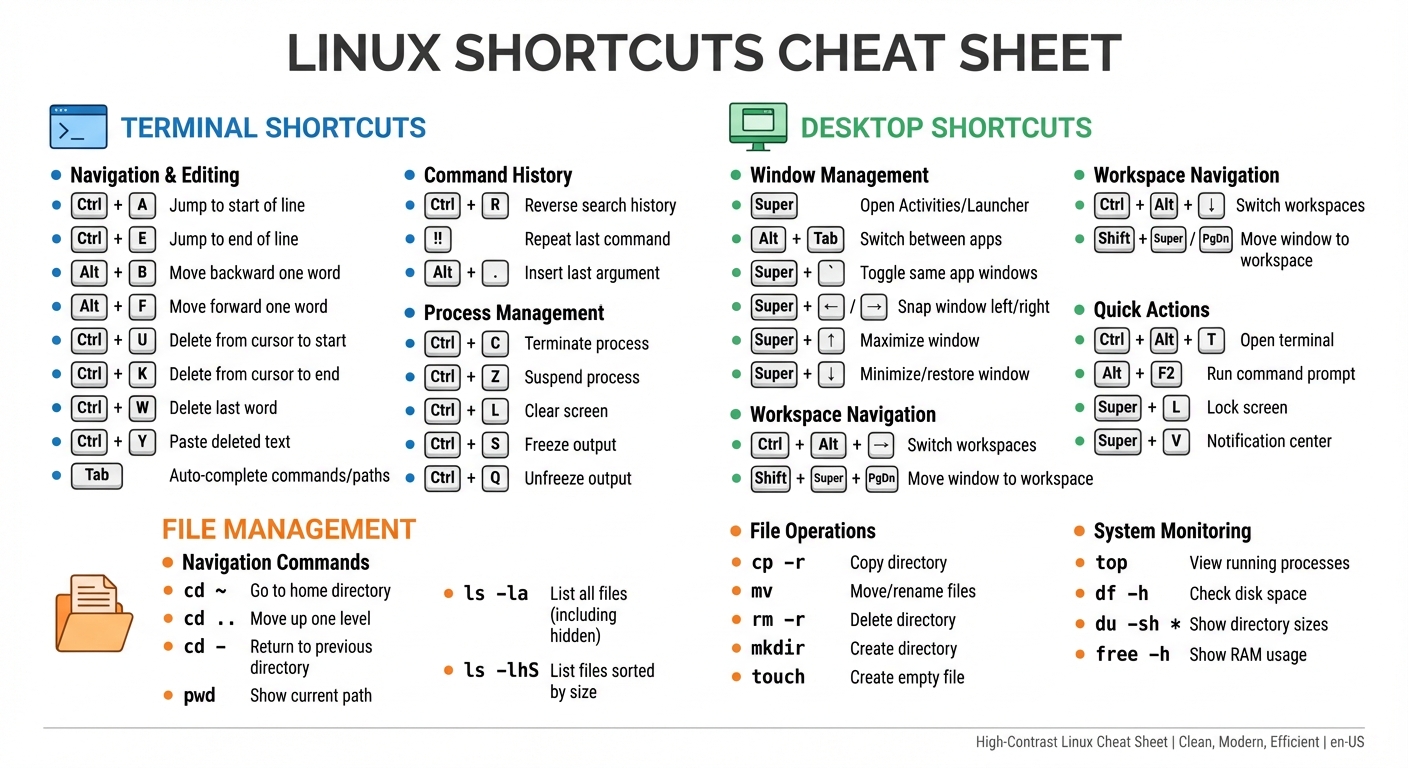
Mastering navigation shortcuts can save you a ton of time. Use Ctrl + A to jump to the start of a command line and Ctrl + E to move straight to the end. If you need to tweak something in the middle of your command, Alt + B and Alt + F let you move backward or forward one word at a time.
Need to delete text quickly? Ctrl + U erases everything from the cursor to the start of the line, while Ctrl + K clears from the cursor to the end. For smaller edits, Ctrl + W removes the last word you typed. These shortcuts don’t just delete – they cut the text into a buffer. You can press Ctrl + Y to paste it back wherever needed, making rearranging commands a breeze.
Don’t overlook the Tab key – it’s a game-changer. It auto-completes commands, file names, and directory paths, saving you from typos and excessive typing. When there are multiple matches, pressing Tab twice shows all possible completions.
Command History and Execution
Command history shortcuts are lifesavers when you need to reuse or tweak previous commands. Press Ctrl + R to activate reverse search, allowing you to type a few characters and quickly locate a matching command from your history. If there are multiple matches, hit Ctrl + R again to scroll through them, or press Esc to exit the search without executing anything.
The !! shortcut is perfect for repeating your last command. It’s especially handy if you forget to include sudo – just type sudo !! to rerun the previous command with administrative privileges. Another useful trick is Alt + ., which inserts the last argument from your previous command. For example, if you just listed a directory with ls, you can use Alt + . to quickly cd into it without retyping the path.
Process Management
Sometimes, you need to stop a command in its tracks. Ctrl + C is your go-to shortcut for terminating the current process. If you’d rather pause it temporarily, Ctrl + Z suspends the process. You can bring it back to the foreground later by typing fg and continue where you left off.
For a clean workspace, Ctrl + L clears your screen while keeping your command history intact. And if your terminal seems unresponsive, you might’ve accidentally hit Ctrl + S, which freezes terminal output. Simply press Ctrl + Q to unfreeze it and get back to work.
Desktop Environment Shortcuts
Your Linux desktop environment is packed with handy shortcuts that make multitasking faster and more efficient. Whether you’re using GNOME, KDE, or another popular desktop, these keyboard combinations let you manage windows, launch apps, and control your system – all without relying on a mouse. Let’s dive into how you can streamline your workflow with these shortcuts.
Window and Workspace Management
The Super key (commonly the Windows or Command key) is your gateway to many Linux desktop shortcuts. Pressing it alone opens the Activities Overview in GNOME or the Application Launcher in KDE, giving you a quick view of all open windows and apps. For switching between apps, Alt + Tab cycles through open applications, while Alt + Shift + Tab moves in the opposite direction. If you’re working with multiple windows of the same app, like several browser tabs or terminal windows, use Super + ` (the tilde key) to toggle between them.
Need to arrange your windows? Window snapping is your best friend. Use Super + Left Arrow or Super + Right Arrow to snap a window to the left or right half of the screen. Super + Up Arrow maximizes the window, while Super + Down Arrow minimizes or restores it. For finer adjustments, Alt + F7 lets you move a window using the arrow keys, and Alt + F8 enables resizing.
Workspaces are a lifesaver when juggling multiple projects. With Ctrl + Alt + Arrow keys (or Super + Page Up/Down in GNOME), you can switch between virtual workspaces. To move a specific window to another workspace, use Shift + Super + Page Up/Down. This keeps your tasks organized and eliminates the chaos of cycling through too many windows with Alt + Tab.
Once your workspace is set up, it’s time to launch your favorite apps with ease.
Launching Applications
Launching apps is quick and intuitive. Press the Super key and start typing the app’s name to find and open it instantly. For executing commands, Alt + F2 opens a floating run prompt where you can type commands like "killall [process]" or start specific tools. Need a terminal? Ctrl + Alt + T opens a new terminal window on most Linux distributions.
If you’ve pinned apps to your dock, shortcuts like Super + 1 through Super + 9 launch them based on their position. For a full list of installed apps, use Super + A in GNOME or Alt + F1 in KDE and Xfce.
Screen and System Controls
Taking screenshots is simple: Print Screen captures the entire screen, while Alt + Print Screen grabs only the active window. These shortcuts automatically open your screenshot tool for editing or saving. To quickly lock your screen, press Super + L in GNOME and Ubuntu, or Ctrl + Alt + L in KDE, Linux Mint, and many other environments. Need to power off or log out? Ctrl + Alt + Delete brings up the dialog in GNOME and Ubuntu.
For quick access to settings, press Super and type "Settings", "Volume", or "Brightness" to jump directly to those controls. In GNOME and Ubuntu, Super + V opens the notification center, where you can review alerts and messages. If your desktop ever freezes, Ctrl + Alt + F1 through F6 switches to a text-based virtual console for troubleshooting, and Ctrl + Alt + F7 typically brings you back to the graphical interface.
These shortcuts are designed to keep your workflow seamless and distraction-free, even when things get hectic.
sbb-itb-6893d99
File Management Shortcuts
Working with files in the Linux terminal becomes much easier once you get the hang of some key shortcuts and commands. These tools allow you to navigate, organize, and monitor your system entirely from the keyboard, saving time and effort with each task. They build on earlier shortcuts, creating a streamlined way to boost your Linux productivity.
File Navigation and Operations
The Tab key is a lifesaver for auto-completing file or directory names. Press it once to complete the name or twice to see available options.
For moving between directories, the cd (change directory) command is essential. Use cd ~ or simply cd to return to your home directory, cd .. to move up one level, and cd - to toggle back to your previous directory. If you’re unsure where you are in the file system, pwd (Print Working Directory) will display your current path.
To view directory contents, ls lists all files and subdirectories. Add options like ls -la to see hidden files (those starting with a dot) or ls -lh for file sizes in KB or MB instead of raw bytes. Want to sort by size? Use ls -lhS to quickly identify large files. If the output is too long to digest, pipe it through less like this: ls -l | less to scroll through the results one screen at a time.
Creating and managing directories is straightforward with mkdir, while pushd . adds your current directory to a stack, and popd takes you back to the top of that stack. These are great for juggling multiple working directories without losing track of where you are.
Basic File Commands
Copying, moving, and deleting files are fundamental tasks in Linux. The cp command copies files, and for directories, include the -r flag (e.g., cp -r source destination). The mv command handles both moving files to new locations and renaming them within the same directory. To delete files, use rm, and for directories and their contents, add the -r flag (e.g., rm -r folder).
To avoid accidental deletions, use the -i flag with rm (e.g., rm -i filename), which prompts for confirmation before removing anything. If you’re using wildcards, like rm *.log to delete all log files, it’s a good idea to run ls *.log first to confirm which files will be affected. Need to create an empty file? The touch command does the trick or updates the timestamp of an existing file.
Before copying large files or folders, check available disk space with df -h, which displays storage usage in a readable format. To see the size of each directory and file in your current location, use du -sh *. This helps pinpoint where your storage is being used.
System Monitoring and Management
To keep an eye on system performance, the top command provides a real-time view of running processes and resource usage, showing which programs are hogging CPU and memory. For a quick snapshot of processes, ps aux gives detailed information, while free -h shows how much RAM is available and in use.
If you need to stop a process, use kill followed by its process ID (e.g., kill 1234). To monitor log files as they update, tail -f filename displays new lines in real time, while head shows the first 10 lines of a file.
These commands are the foundation of efficient file management in Linux, letting you replace countless mouse clicks with a few simple keystrokes.
Time-Saving Routines for Parents
Balancing parenting and work often feels like juggling flaming torches – interruptions are just part of the deal. Fortunately, Linux shortcuts can help you pause, resume, and manage tasks without losing your rhythm. These practical routines are tailored to the fast-paced life of parents, building on the essential shortcuts discussed earlier.
Organizing Your Workspace
Virtual desktops are a lifesaver for keeping work and family responsibilities separate. By dedicating one workspace to your job – think code editors, terminal windows, and documentation – and another to family tasks like grocery lists or school schedules, you can switch gears without losing focus. For example, if your child needs help with homework or a snack, simply flip to the family workspace without closing your work windows. Need instant privacy? Use Ctrl + Alt + D to minimize all windows in a flash.
Recovering After Interruptions
Parenting is full of sudden interruptions – whether it’s a phone call or a sibling squabble. Instead of terminating your work with Ctrl + C, use Ctrl + Z to suspend the process, keeping it safe in the background. When you’re ready to jump back in, type fg to resume exactly where you left off. To make life even easier, shortcuts like Ctrl + R and !! let you quickly recall and repeat previous commands, saving you from retyping. And if an interruption strikes mid-command, don’t panic – use Ctrl + U to cut the line and Ctrl + Y to paste it back when you return.
Batch Processing for Repetitive Tasks
When time is tight, automating repetitive tasks can be a game-changer. Use command chaining with && or create aliases in your .bashrc file to handle routine updates effortlessly. For instance, setting up alias update='sudo apt update && sudo apt upgrade' allows you to perform system updates with a single command. Want to go a step further? Combine commands like sudo apt update && sudo apt upgrade && reboot to update and restart your system in one go – no babysitting required. Pair these techniques with navigation and editing shortcuts to maximize efficiency during those precious moments between family responsibilities.
How to Use This Cheat Sheet
Prioritizing Which Shortcuts to Learn
The lists above may seem overwhelming at first, but the key to mastering these shortcuts is to focus on what you need most. Instead of trying to memorize everything, break them into three categories: "Must-Know" for everyday essentials, "Nice-to-Have" for tasks you use occasionally, and "Learn Later" for advanced operations. Start with the universal basics, like the shortcuts already mentioned, and then move on to terminal navigation tricks that save time. For example:
- Tab for autocompletion
- Up Arrow or Ctrl + R to scroll through command history
- Ctrl + Alt + T to open a terminal quickly
When it comes to file operations, focus on mastering commands like ls (list files), cd (change directory), pwd (print working directory), and mkdir (make directory). Process control is another critical area – learn shortcuts like Ctrl + C to stop unresponsive tasks and Ctrl + Z to pause them. As Milica Dancuk explains:
The more you use Linux commands, the better you will get at remembering them.
Once you’ve identified the shortcuts that matter most, practice using them until they become second nature.
Integrating the Cheat Sheet Into Your Routine
Now that you’ve prioritized your shortcuts, it’s time to make this cheat sheet part of your daily workflow. Print it out and keep it visible on your desk to avoid the hassle of switching between windows while working. Seth Kenlon captures the value of this approach perfectly:
Having a cheat sheet with the most common commands can be both relieving and empowering.
Use the blank side of the sheet to jot down specific flags or parameters that align with your tasks. This personal touch will make the guide even more useful as you gain experience.
Don’t stress about memorizing every shortcut. Instead, rely on the cheat sheet for quick reference, letting repetition naturally reinforce your knowledge. If you’re often interrupted – say, by kids or other distractions – highlight shortcuts like Ctrl + R, cd -, and jobs to help you quickly pick up where you left off.
FAQs
What are the most useful Linux shortcuts for beginners?
If you’re just starting with Linux, getting familiar with a handful of shortcuts can make a world of difference. They can help you work more efficiently and navigate both the desktop and terminal with ease. Here are some key ones to get you started:
Desktop Shortcuts (GNOME-based environments)
- Ctrl + Alt + T: Quickly open a new terminal window.
- Ctrl + Alt + D: Show the desktop by minimizing or hiding all open windows.
- Alt + F2: Bring up the "Run Command" dialog for launching applications or commands.
- Super + PgUp / PgDn: Move between workspaces seamlessly.
Terminal Shortcuts (Bash)
- Ctrl + C: Stop or cancel the command currently running.
- Ctrl + A / Ctrl + E: Jump to the beginning or end of the command line, respectively.
- Ctrl + R: Search through your command history interactively – great for finding previously used commands.
- Ctrl + Shift + C / Ctrl + Shift + V: Copy and paste text directly within the terminal emulator.
These shortcuts are perfect for common tasks like managing windows, navigating commands, and handling text. Learning them will make Linux feel much more approachable and let you work without unnecessary interruptions.
How do I manage multiple workspaces in Linux efficiently?
Managing multiple workspaces, also known as virtual desktops, is an excellent way to keep your tasks organized and your screen clutter-free. You can assign one workspace to work-related tasks, another to personal browsing, and a third to media activities. This setup not only helps you stay focused but also makes multitasking more manageable. Linux desktop environments like GNOME, KDE, and Xfce come with handy shortcuts to make navigating between these workspaces effortless.
Take GNOME, for example. You can switch between workspaces using Super + Page Up/Page Down, or jump directly to a specific workspace with Super + [number] (like Super + 1 for the first workspace). Need to move a window to another workspace? Use Shift + Super + Page Up/Page Down or Shift + Super + [number]. These shortcuts are a huge time-saver, letting you skip the hassle of using your mouse.
For even more control, you can tweak the number of workspaces and their layout through your system settings or by modifying configuration files. Pair these workspace shortcuts with window management tricks – like minimizing or hiding all windows – and you’ll create a streamlined, distraction-free workflow. Whether you’re a busy professional or a multitasking parent, this setup can help you stay on top of everything.
How can Linux shortcuts help busy parents save time and stay organized?
Linux shortcuts can be a real time-saver, especially for parents juggling a busy schedule. For instance, if you need quick access to the terminal, simply press Ctrl + Alt + T – this opens it instantly, letting you manage files or run scripts without delay. In file managers like Nautilus or Nemo, shortcuts such as Ctrl + Shift + N allow you to create new folders effortlessly – perfect for organizing kids’ photos or school documents. And in the terminal, using Ctrl + U (cut line) and Ctrl + Y (paste) makes tasks like renaming files or handling batch edits much smoother.
When it comes to multitasking, desktop shortcuts are invaluable. Need to check your calendar while working? Use Ctrl + Alt + D to minimize all windows in one go. Or, if you’re managing multiple workspaces, Super + PgUp/PgDn lets you switch between them seamlessly – ideal for keeping parenting tools separate from your personal apps. For terminal users, shortcuts like Ctrl + Shift + T to open new tabs, or Ctrl + PgUp/PgDn to navigate between them, make it easy to handle multiple tasks at once. Whether you’re downloading educational videos or backing up family photos, these commands keep everything running efficiently.
Incorporating these shortcuts into your routine can help you reclaim valuable time and keep things organized, even during the most hectic days.