Struggling with slow or unreliable Wi-Fi? Interference might be the culprit. Wi-Fi signals can be disrupted by other devices, nearby networks, or even physical barriers. This leads to slower speeds, dropped connections, and frustrating lags.
Here’s how to quickly identify and fix the issue:
- Symptoms to watch for: Slow speeds, high latency, frequent disconnections, or poor performance despite strong signal strength.
- Common culprits: Microwaves, Bluetooth devices, baby monitors, cordless phones, or overlapping Wi-Fi channels.
- Key tools: Use apps like NetSpot or WiFi Analyzer to check signal strength and network overlap. For deeper issues, spectrum analyzers can pinpoint non-Wi-Fi interference sources.
- Steps to fix: Measure signal strength, scan for crowded channels, identify interference sources, and adjust your router settings or relocate devices.
Pro tip: Switching to the 5 GHz band or moving your router away from interfering devices can significantly improve performance.
Let’s dive deeper into detecting and resolving Wi-Fi interference to get your connection back on track.
How to Use NetSpot WiFi Analyzer (And Fix Bad WiFi!)
sbb-itb-6893d99
What Is Wi-Fi Interference?
Wi-Fi interference happens when your wireless signal is disrupted or weakened by other devices or radio frequency (RF) signals operating on the same frequency. Think of it as trying to carry on a conversation in a room full of people talking at the same time.
Jim Geier, Principal Consultant at Wireless-Nets, Ltd., explains it well: "RF interference is an unwanted ‘signal’ that occurs at the same time and frequency as a data signal". This interference forces constant retransmissions because the data can’t be decoded correctly.
The effects? Slower internet speeds, higher latency, dropped connections, and weaker signal strength. Even a small increase, like a 3 dB rise in the noise floor, can cut Wi-Fi 6E speeds by about 30%. Interference generally falls into three categories: Co-Channel Interference (multiple networks sharing the same channel), Adjacent Channel Interference (signals from nearby channels overlapping), and Non-Wi-Fi Interference (caused by non-802.11 devices).
Common Types of Interference
The 2.4 GHz band is notorious for interference. Microwave ovens, for instance, can significantly disrupt signals when nearby.
Other frequent offenders include Bluetooth devices like headsets, keyboards, and mice, which can reduce throughput by about 20% when active. Similarly, 2.4 GHz cordless phones can lower throughput by 10% during use. Additional sources include baby monitors, wireless security cameras, and even poorly shielded USB 3.0 cables and hubs, which can leak noise into the 2.4 GHz spectrum. Neighboring Wi-Fi networks using overlapping channels also create congestion that slows down data transmission.
Physical barriers further complicate things. Dense materials like concrete, brick, and metal absorb or reflect signals, while reflective surfaces like mirrors or aquariums can cause unpredictable signal bounces. Even fluorescent lights, power lines, and breaker boxes can emit electromagnetic noise that interferes with Wi-Fi.
How 2.4 GHz and 5 GHz Bands Differ
To understand interference better, it helps to see how the 2.4 GHz and 5 GHz bands handle congestion differently.
The 2.4 GHz band has only three non-overlapping channels (1, 6, and 11), which often overlap and cause interference. In contrast, the 5 GHz band offers 23 non-overlapping channels, greatly reducing congestion. The 2.4 GHz channels are spaced just 5 MHz apart but are 20 MHz wide, which leads to adjacent-channel interference.
The 2.4 GHz band is also crowded with household devices like microwaves, Bluetooth gadgets, baby monitors, and cordless phones, adding to the interference. The 5 GHz band, on the other hand, faces fewer non-Wi-Fi disruptors but can still be affected by specialized equipment like radar systems and perimeter sensors.
While 2.4 GHz signals penetrate walls and floors better, they also pick up more interference from nearby networks. The 5 GHz band has a shorter range (about 80 feet compared to 100-200 feet for 2.4 GHz) and doesn’t penetrate walls as well, which helps isolate it from distant sources of interference. For activities like gaming or video conferencing, the 5 GHz band is often the better choice due to its cleaner spectrum and faster speeds (up to 7 Gbps).
How to Recognize Wi-Fi Interference
Your network often gives you clues before you even reach for diagnostic tools. Spotting these early signs can help you figure out if interference, rather than hardware or ISP issues, is causing trouble. Knowing what to look for is key.
Typical Symptoms
One of the most noticeable signs is intermittent connectivity – your connection drops unexpectedly and then reconnects moments later. Another common issue is slow download and upload speeds, even when your device shows "full bars" of signal strength. When there’s a mismatch between strong signal strength and poor performance, interference is often the culprit.
High latency and jitter can make real-time applications frustratingly unusable. Video calls may freeze, online gaming can lag, and streaming might buffer endlessly. If you’re using Bluetooth devices on the 2.4 GHz band, you might also notice audio cutouts in wireless headphones or difficulty pairing devices like keyboards and mice.
Pay attention to patterns tied to specific devices or times of day. For example, if your connection worsens when appliances like microwaves, baby monitors, or cordless phones are in use, you might be dealing with non-Wi-Fi RF interference. Similarly, if your network slows down every evening but works fine in the morning, it could be "evening congestion" caused by increased activity on nearby networks. To rule out other issues, try standing close to your router – if speeds are still slow, the problem might lie with your ISP or hardware instead of interference.
The Signal-to-Noise Ratio (SNR) is another critical indicator. For stable connectivity, you need at least 25 dB, while anything below 15 dB can cause unreliable performance. At 10 dB or lower, maintaining a wireless connection becomes nearly impossible. Even a small 3 dB increase in the noise floor can reduce Wi-Fi 6E speeds by about 30%. Spotting these symptoms early can help you take the next steps in diagnosing and addressing interference.
Detection Tools and Software
When interference symptoms pop up, diagnosing the issue doesn’t have to break the bank. With accessible tools ranging from basic router features to advanced professional analyzers, you can pinpoint the problem effectively. Let’s dive into the options.
Router Settings and Free Apps
Start with your router’s admin panel. Many modern routers offer insights into channel usage, signal strength, and even automatic channel selection to optimize performance. It’s a great first step to identify potential issues.
If you need more detailed data, free apps like WiFiman, WiFi Analyzer, and inSSIDer are excellent options. These apps use your device’s built-in Wi-Fi module to scan your environment, providing information like signal strength (RSSI), channel usage, and overlapping networks. They also display this data in easy-to-read charts and graphs. For Android users, WiFi Analyzer stands out with its intuitive interface, while Mac users often prefer WiFi Explorer.
Another option is NetSpot, which offers a free "Inspector Mode." This tool provides real-time data on SSIDs, BSSIDs, channels, and signal-to-noise ratios. With a 4.8/5 rating from nearly 1,000 users, it’s particularly useful for identifying crowded channels and distinguishing between co-channel and adjacent-channel interference.
Apps with Spectrum Analysis
While standard Wi-Fi scanners are great for detecting 802.11 packets, they fall short when it comes to non-Wi-Fi interference, like signals from microwave ovens or baby monitors. For these situations, spectrum analysis apps step in to bridge the gap.
Tools like Ekahau Analyzer, available for both iOS and Android, offer real-time RF spectrum views. However, these apps often require external hardware, such as the Ekahau Sidekick 2, to measure raw RF energy across the 2.4, 5, and 6 GHz bands. The Sidekick 2 is particularly powerful, performing up to 50 sweeps per second with a frequency resolution of 19 kHz. It can even identify common interferers, like "Microwave Oven" or "Bluetooth", by recognizing their unique RF patterns.
"A WiFi site survey tool is designed to measure WiFi coverage by measuring the signal strength of the beacon emitted by an access point… An RF spectrum analyzer is the tool of choice when it comes to detecting / measuring general RF transmissions that could be interfering with a WiFi network." – Nuts About Nets
Professional Spectrum Analysis Tools
For more complex interference issues, basic tools might not cut it. This is where professional spectrum analyzers come into play. Tools like Ekahau AI Pro, AirMagnet WiFi Analyzer, and NetAlly AirCheck offer advanced features, including airtime utilization, noise floor analysis, and even packet-level inspection. They also provide heatmaps and predictive models to simulate how network adjustments might improve performance.
What sets these professional tools apart is their hardware. Unlike free apps that rely on standard Wi-Fi adapters, professional analyzers use dedicated hardware capable of detecting both Wi-Fi and non-Wi-Fi interference – such as radar or jammers. For instance, if your Wi-Fi slows down every day at lunchtime, a professional spectrum analyzer might reveal that a microwave oven with a leaky seal is flooding the 2.4 GHz band with interference.
While these tools are more expensive and require a learning curve, they’re invaluable for troubleshooting intermittent issues or planning enterprise-grade networks where reliability is critical.
How to Detect Wi‑Fi Interference: Step‑by‑Step
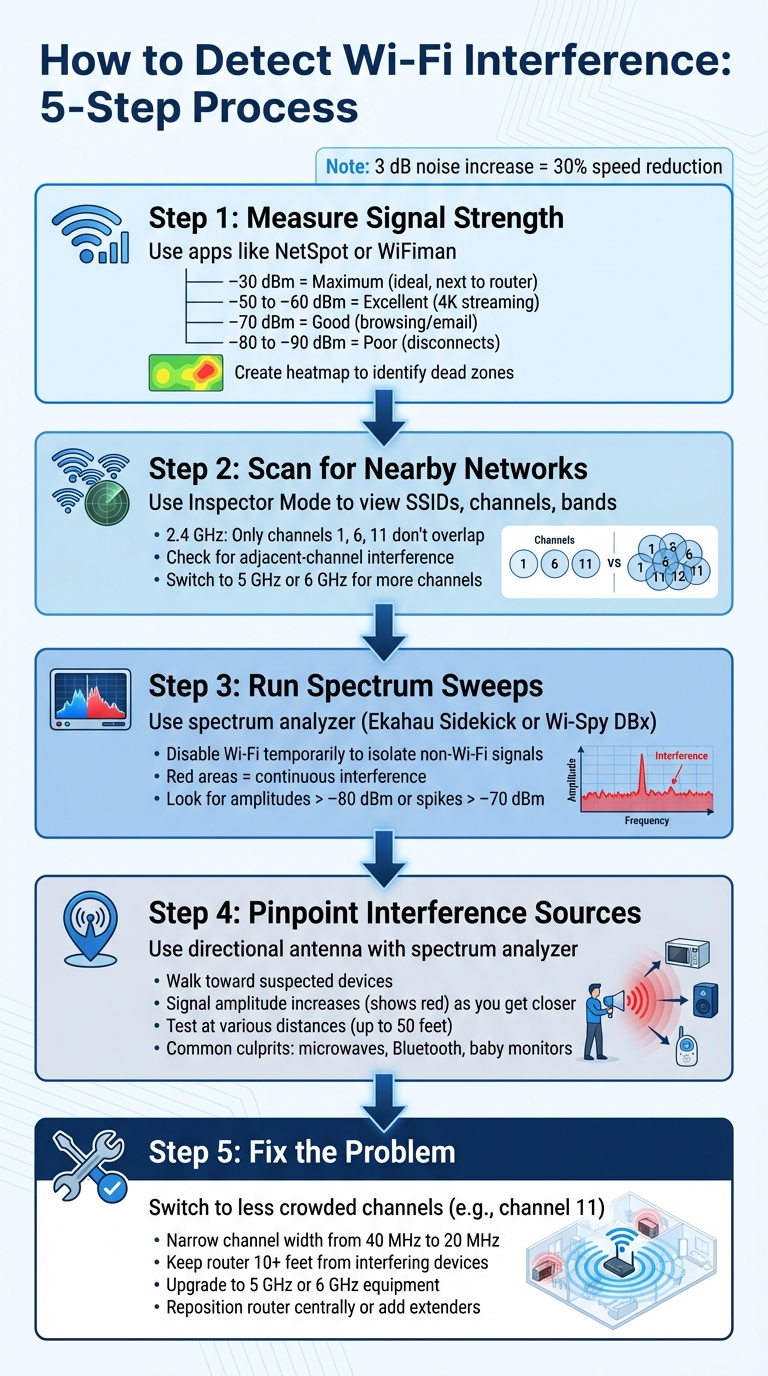
5-Step Process to Detect and Fix Wi-Fi Interference
Here’s a straightforward five-step process to identify and address Wi‑Fi interference. It’s effective whether you’re troubleshooting at home or in a small office.
Step 1: Measure Signal Strength
Start by checking your signal strength near the router. Use an app like NetSpot or WiFiman to take readings. A signal between –50 dBm and –60 dBm indicates a strong, stable connection, confirming that your ISP and hardware are functioning as expected before you move on to other areas.
Next, walk through your space with the app open, recording signal levels in different rooms. If the signal weakens primarily behind walls, the issue may be physical obstructions rather than interference. Many apps include a heatmap feature, which visually maps out signal coverage and highlights "dead zones" where the signal is weak.
| Signal Strength (dBm) | Quality | Impact on Performance |
|---|---|---|
| –30 dBm | Maximum | Ideal; typically achieved only right next to the router. |
| –50 to –60 dBm | Excellent | Suitable for high‑bandwidth tasks like 4K streaming. |
| –70 dBm | Good | Reliable for basic browsing and email. |
| –80 to –90 dBm | Poor | Likely to cause frequent disconnects and slow speeds. |
Step 2: Scan for Nearby Networks
Use your app’s Inspector Mode to view nearby networks. This will show each network’s SSID, channel, band (2.4 GHz or 5 GHz), and signal strength.
Pay close attention to channel assignments. In the 2.4 GHz band, only channels 1, 6, and 11 don’t overlap. For instance, if your network is on channel 1 and a neighbor’s strong signal is on channel 2, you’re likely dealing with adjacent-channel interference. While co-channel interference (when networks share the same channel) is less disruptive due to Wi‑Fi protocols managing access, overlapping channels can cause major disruptions.
Check the real-time signal graph as well. If your signal strength fluctuates wildly, nearby networks might be interfering. In crowded areas, switching to the 5 GHz or 6 GHz bands can help, as they offer more non-overlapping channels.
Once you’ve assessed channel overlap, move on to identifying interference from non‑Wi‑Fi devices using spectrum sweeps.
Step 3: Run Spectrum Sweeps
Wi‑Fi scanners only detect 802.11 devices, so they can’t pick up interference from sources like microwaves, Bluetooth devices, or baby monitors. To identify these, use a spectrum analyzer such as the Ekahau Sidekick or Wi‑Spy DBx.
Start by temporarily disabling your Wi‑Fi to isolate non‑Wi‑Fi signals. Run a sweep across the 2.4 GHz and 5 GHz bands to detect continuous transmissions. Areas marked in red on the display indicate devices transmitting constantly, which can severely impact your network.
For example, microwaves create wideband interference across the entire 2.4 GHz spectrum, while Bluetooth devices appear as small, frequency-hopping blips. If the analyzer shows amplitudes greater than –80 dBm or spikes above –70 dBm occurring frequently, you’ve likely found a significant source of interference.
Step 4: Pinpoint Interference Sources
Now it’s time to locate the exact source of the interference. Use a directional antenna with your spectrum analyzer and walk toward suspected devices. As you get closer, the signal amplitude will increase and often appear red on the display. Hold the analyzer at the typical height of device usage for accurate readings.
"The closer an engineer gets to the interfering source, the amplitude increases on the application and is indicated, usually, in red."
– Rowell Dionicio, Network Engineer
Test suspected devices, like microwaves, which can drastically reduce network speeds when nearby. Take spectrum readings at various distances (up to 50 feet) to confirm the source of the interference.
Step 5: Fix the Problem
Once you’ve identified the interference source, take steps to resolve it. If nearby networks crowd channels 1 and 6, switch your router to channel 11 to reduce overlap. In highly congested areas, narrowing the channel width from 40 MHz to 20 MHz can also help minimize interference.
For non‑Wi‑Fi interference, try relocating devices. For example, keep your router at least 10 feet away from microwaves, cordless phones, and baby monitors. Upgrading to 5 GHz or 6 GHz equipment can also reduce interference, as these bands provide more channels.
If physical barriers are the issue, reposition the router to a central location or consider adding a Wi‑Fi extender to cover the weak spots identified on your heatmap.
Conclusion
Tackling Wi-Fi interference effectively involves following a straightforward five-step process: measure signal strength, scan for nearby networks, run spectrum sweeps, locate interference sources, and apply targeted fixes. This method ensures your wireless performance stays consistent and reliable.
"WiFi troubleshooting tools aren’t designed to ‘boost’ or ‘fix’ your network with a single tap… What these tools do give you is visibility." – NetSpot
It’s important to note the difference between tools: Wi-Fi scanners help identify overlapping networks, while spectrum analyzers detect non-Wi-Fi signals, such as those from microwaves or Bluetooth devices.
Once you’ve pinpointed the interference, solutions like adjusting channels, repositioning devices, and optimizing channel width can help resolve the issue. Regular monitoring is equally important. Establishing an RF health baseline and conducting periodic scans can help you catch new interference before it becomes a problem. Even a small increase – like a 3 dB rise in the noise floor – can reduce Wi-Fi 6E speeds by around 30%. Staying proactive is key to maintaining strong, uninterrupted connectivity.
FAQs
How do I know it’s interference and not my ISP?
If your Wi-Fi is acting up, look out for signs like fluctuating signal strength, inconsistent connection quality, or unusable channels. These issues often stem from interference caused by devices like microwaves or even nearby networks.
To confirm interference, tools like spectrum analyzers or diagnostic apps can be incredibly helpful. Here’s a quick tip: if your wired connection works perfectly but your Wi-Fi doesn’t, interference is likely the culprit. On the other hand, if both your wired and wireless connections are experiencing problems, the issue might be with your ISP.
When should I switch from 2.4 GHz to 5 GHz (or 6 GHz)?
When you need faster speeds, lower latency, or a more stable connection, switching to the 5 GHz or 6 GHz bands can make a big difference. These bands are especially useful in environments where the 2.4 GHz band is crowded or prone to interference – think busy neighborhoods or homes packed with multiple devices. If you’re dealing with slow internet speeds, frequent dropouts, or interference from nearby electronics, moving to one of these higher-frequency bands can help improve your network’s performance.
Do I really need a spectrum analyzer to find non‑Wi‑Fi interference?
You don’t absolutely need a spectrum analyzer to spot non-Wi-Fi interference, but it can make a big difference if accuracy is your goal. While basic tools or simply monitoring network problems might give you some clues, spectrum analyzers offer a detailed view of radio frequency activity. This makes it much simpler to pinpoint interference sources like microwaves, cordless phones, or Zigbee devices. They’re particularly handy when planning or troubleshooting networks to keep your wireless performance running smoothly.