Your microphone settings can make or break your audio quality. Whether you’re on a call, recording a podcast, or working from home, clear sound ensures your message gets through. Here’s how to improve your mic settings:
- Positioning: Keep your mic 6–12 inches away and angle it slightly off-axis to avoid harsh sounds.
- Gain Levels: Set your loudest moments to peak between -12 dB and -6 dB to avoid distortion.
- Filters: Use a high-pass filter (80 Hz) to cut low-frequency noise and apply noise suppression tools for background sounds.
- EQ Settings: Reduce muddiness (200–600 Hz), boost clarity (3–5 kHz), and smooth harsh "S" sounds (5–8 kHz).
- Compression: Balance loud and soft parts by applying a 4:1 ratio with 80 ms attack and 20 ms release.
Testing your setup is crucial – record samples, adjust as needed, and disable automatic volume controls in apps. With these steps, you can achieve clear, professional audio without needing expensive gear.
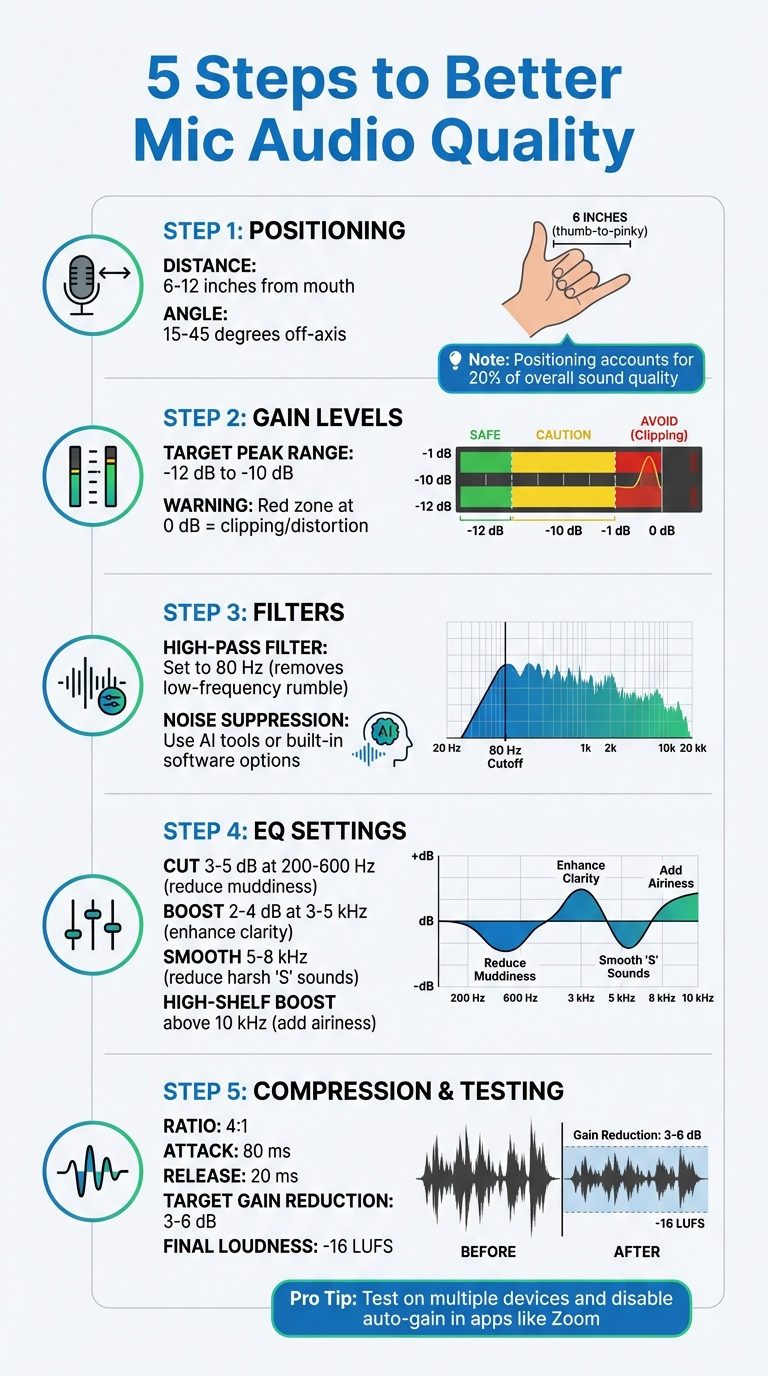
5-Step Guide to Optimize Microphone Settings for Professional Audio Quality
7 Microphone Tips to Improve Audio Quality | Record Pro Sound
How to Position Your Microphone Correctly
Getting your microphone placement right is essential for achieving clear, professional audio. In fact, positioning alone accounts for about 20% of your overall sound quality. Nail this step, and you’ll set yourself up for success when tweaking software settings later.
Finding the Right Distance
For most microphones, the ideal distance is between 6 to 12 inches from your mouth. Getting too close – anything under 6 inches – can trigger the proximity effect, making your voice sound overly bassy and muddy. On the flip side, placing the mic more than 12 inches away can thin out your audio and increase background noise.
"A good rule of thumb is to have the mic positioned about 6-12 inches away from your mouth." – Voices.com
Here’s a quick trick to measure 6 inches: Place your thumb on your chin and extend your pinky toward the mic. For consistency, consider using a pop filter as a physical guide – it helps maintain the right distance and reduces plosives.
Once you’ve got the distance right, it’s time to focus on the angle.
Adjusting the Angle
Avoid speaking directly into the center of the mic. Instead, angle it slightly off-axis – somewhere between 15 to 45 degrees – or position it just above or below your mouth. Why? This setup minimizes harsh plosive sounds like "P" and "B", which can hit the microphone’s diaphragm too forcefully.
"Tilting the mic slightly off-axis will cause plosive energy to hit the diaphragm at an angle and soften the blow of the plosive." – Arthur Fox, Founder, My New Microphone
Another key detail: make sure you’re speaking into the correct part of your microphone. For top-address mics (like the Shure SM57), point the top directly at your mouth. For side-address mics (like the Rode NT1), speak into the side of the capsule. If you’re unsure which type you have, check the manual or look for markings on the mic itself.
Finally, if you’re dealing with unwanted noise – like keyboard clicks or a fan – use your cardioid microphone’s natural rejection pattern. Point the back of the mic toward the noise source to reduce ambient sound.
Setting Gain and Volume Levels
Once your mic is positioned correctly, the next step is dialing in your gain settings. Gain controls the amplification of the raw signal from your microphone at the input stage. Getting this right is crucial – too much gain can cause harsh digital distortion (clipping), while too little can bury your voice in background noise. The goal is to find the sweet spot where your signal is clear and avoids both extremes.
Adjusting Input Gain
The key to setting input gain is maximizing clarity while avoiding clipping. For high-quality voice recordings, aim for your loudest speaking moments to peak between -10 dB and -12 dB. This range gives you enough headroom below 0 dB to handle unexpected loud sounds without ruining your audio.
"In the digital world, 0dB = a ruined recording, so when recording/tracking, you’ll want to leave yourself some headroom. A clearance of -6 to -12 is recommendable." – ION Audio
Start by turning your gain knob to its lowest setting. Speak naturally, then gradually increase the gain until your loudest moments consistently peak in the -12 dB to -10 dB range. Your meter should mostly stay in the green zone, occasionally touching yellow, but never hitting red.
Be cautious about turning your preamp gain past the 3 o’clock position on the dial. Many preamps introduce more noise at higher levels, so it’s better to record a slightly quieter signal and boost it later in software if needed.
Testing for Clipping and Weak Audio
Once you’ve set your gain, it’s time to test your setup thoroughly. Speak phrases that include plosives, such as “P,” “T,” and “F,” while watching your meter. If the meter hits red, reduce the gain. If only a few bars appear, your signal is likely too weak, and you’ll need to increase the gain at the source.
"Setting your gain too high can cause the sound levels to clip, but setting them too low can make your audio muffled and difficult to hear." – SoundGuys
For users adjusting input levels on Windows 10, you can fine-tune your settings by right-clicking the speaker icon, navigating to the Sound Control Panel, selecting the Recording tab, and adjusting the slider under Levels in the microphone’s properties. However, it’s generally better to adjust gain directly on your microphone or audio interface. Also, in Windows’ Advanced settings, uncheck “Allow applications to take exclusive control of this device” to ensure your carefully set levels aren’t overridden by apps.
Applying Filters to Reduce Noise
Once you’ve set your gain to capture clear audio, filters help fine-tune your sound by cutting out unwanted noise. They zero in on specific frequencies, allowing your voice to shine through while removing rumble, hum, and other distractions. High-pass filters and noise suppression are two key tools for this.
Using High-Pass Filters
A high-pass filter works by allowing higher frequencies to pass through while eliminating lower ones. This is especially useful for getting rid of low-frequency sounds that muddy up your recordings.
"A high-pass filter allows only the high frequencies in an audio signal to pass and removes low-frequencies in ambient sounds." – Marco Sebastiano Alessi, July 16, 2024
For voice recordings, an 80 Hz setting is a good starting point. It effectively removes low-end rumble without compromising the natural tone of your voice. Many professional microphones, like the Audio-Technica AT4040, come equipped with an 80 Hz high-pass filter switch that can manage sound pressure levels up to 155 dB.
"When low-frequency rumble/hum or overwhelming bass invade your signal, turn on the 80 Hz high-pass filter switch to attenuate the lows without resorting to EQ." – ProSoundGear
Using a hardware-based high-pass filter (HPF) ensures cleaner audio before it even reaches your recording software, minimizing the workload during post-production. While HPFs target low-frequency noise, noise suppression handles a wider range of background sounds.
Adding Noise Suppression
Noise suppression goes beyond low-frequency issues to tackle a broader spectrum of background noise. You can apply it using software tools or dedicated hardware.
AI-powered tools like NVIDIA RTX Voice and Krisp are great for real-time noise suppression, removing non-vocal sounds while keeping your voice intact. Even Windows 10 and 11 offer built-in options like "Acoustic Echo Cancellation" and "Noise Suppression", accessible in the Sound Control Panel under the Enhancements tab.
For additional noise control, consider a shock mount to block vibrations and improve your recording space with simple sound treatments, such as hanging blankets, rugs, or foam tape.
If you’re recording for post-production, leave about 5 seconds of silence at the start of your track. Tools like Audacity can use this silent section to create a noise profile, which helps remove consistent background hiss or hum from the entire recording. Be cautious with noise suppression – overdoing it can make your voice sound unnatural, like it’s coming from underwater or a robot.
sbb-itb-6893d99
Adjusting EQ for Better Voice Clarity
Once you’ve tackled noise filtering, the next step to improve your voice recordings is EQ. Equalization (EQ) fine-tunes the tone of your voice by adjusting specific frequency ranges. Here’s how to refine your sound and make it clearer and more professional.
Basic EQ Settings for Voice
To start, you might want to apply a high-pass filter below 80–100 Hz. This helps eliminate any remaining low-end rumble that could muddy your recording.
- Reduce muddiness: Cut 3–5 dB in the 200–600 Hz range. This helps avoid that "boxy" sound and keeps your voice clean and natural.
- Enhance clarity: Boost 2–4 dB between 3–5 kHz. This frequency range is where consonants live, making your voice more intelligible and helping it stand out.
"The primary goal of EQ’ing vocals is to remove problematic frequencies, preserve their natural character, and improve overall clarity and presence." – Avid
If you notice harsh "S" or "T" sounds in the 5–8 kHz range, use a narrow cut or a de-esser tool to smooth them out. Then, to add a polished, airy quality, apply a high-shelf boost above 10 kHz.
When making adjustments, keep them subtle – stick to changes of 3–5 dB. Overdoing it can leave your voice sounding processed or unnatural. A helpful technique is the "boost and sweep" method: apply a narrow boost, sweep through the frequencies to locate trouble spots, and then turn the boost into a cut.
Starting with Vocal EQ Presets
If manual adjustments feel overwhelming, vocal EQ presets can be a great place to begin. Most recording software includes presets like "Vocal" or "Speech" that provide a solid foundation for your mix. From there, you can fine-tune as needed.
For example, masculine voices often focus in the 80–180 Hz range, while feminine voices usually sit between 160–260 Hz. Adjust the low-end frequencies accordingly to match the natural tone of the voice you’re working with.
It’s also a good idea to toggle your EQ settings on and off to compare the processed sound with the original. The aim is clarity while maintaining the voice’s natural character. As producer Tony Maserati puts it:
"Subtractive EQ’ing will save you. A deep reduction at 500Hz is equal to a huge gain at 2kHz and above."
One final note: EQ can’t fix everything. For example, if the microphone placement was too far away, no amount of EQ will fully restore the recording. A slight boost in the 100–300 Hz range might help bring some warmth, but capturing the voice properly during recording is key.
Adding Compression and Testing Your Settings
Using Compression to Even Out Volume
Compression is like the glue that holds your audio together. It automatically lowers sounds that are too loud, balancing the difference between your loudest and softest moments. Nick Messitte from iZotope sums it up perfectly:
"Compression takes sounds you deem as too loud and turns them down. This is done to even out the differences between loud and quiet passages of audio."
To get a natural, polished sound, try these settings: a 4:1 ratio, 80 ms attack, and 20 ms release. These parameters smooth your audio without making it feel overly processed. Adjust the threshold until you see 3–6 dB of gain reduction during louder peaks. Then, use makeup gain to bring the overall volume back to its original level.
Compression also works wonders for those softer moments at the end of phrases, where your voice might fade as you run out of breath. It keeps these quieter parts audible, ensuring your voice remains clear, even in noisy environments.
Once you’ve applied compression, it’s time to test your settings and make sure everything sounds just right.
Testing Your Final Audio
Don’t skip testing – it’s the only way to ensure your adjustments are spot on. Use the Test Mic feature in your recording software to record a short sample. Speak at both normal and louder volumes, and include phrases with plosives to check for any clipping.
Aim for an integrated loudness around -16 LUFS. Then, listen to your recording on various devices – try it on a car stereo, cheap earbuds, or even phone speakers. If it sounds good across all of them, you’re in great shape.
One final tip: disable features like "Automatically adjust microphone volume" in apps like Zoom. These auto-gain settings can undo all your hard work by creating unnatural volume shifts.
Conclusion
Getting clear, professional audio doesn’t mean you need to splurge on fancy equipment – it’s all about making smart adjustments. As Kevin Kemp from Backstage wisely says:
"Improving your microphone’s sound isn’t about spending a fortune – it’s about understanding and optimizing what you have."
Start with the essentials: position your mic 6 to 12 inches from your mouth (a thumb-to-pinky distance works well) and angle it slightly off-axis to reduce plosives. Adjust your gain so sound peaks hit between -12 dB and -10 dB to avoid distortion. Use a high-pass filter to cut out low frequencies below 100 Hz, then enhance the 4–6 kHz range with EQ to bring out clarity. Add compression to even out your audio levels and keep everything consistent.
Each step in this process solves a specific audio challenge. Joseph Lieberman from Antlion Audio emphasizes:
"Audio is subjective… the most important thing to remember is that audio is subjective and to keep changes as small as possible."
Take the time to experiment. Record short clips, listen back with quality headphones, and tweak settings until your voice sounds natural and balanced. Small adjustments often lead to better results than big changes. With practice and a methodical approach, you’ll consistently achieve polished, professional audio.
FAQs
How can I stop my microphone from picking up background noise?
To cut down on background noise and boost voice clarity, start by placing your microphone about 2–12 inches from your mouth. Keep it away from noisy devices like fans or air vents. This positioning helps capture your voice more clearly and reduces unwanted ambient sounds.
Next, make sure your microphone is set as the default input device in your computer’s sound settings. On Windows, you can also enable noise reduction features. Go to Control Panel → Sound → Recording, select your microphone, and activate options like Noise Suppression or Acoustic Echo Cancellation in the Properties menu.
Lastly, set your microphone input level to a moderate range to avoid amplifying background hiss. If your mic has the option, switch to a directional (cardioid) pattern. This setting focuses on picking up sound from the front while reducing noise from the sides or back. These small adjustments can significantly improve your audio quality!
What are the best microphone EQ settings for clear voice quality?
To make your voice sound clear and natural, try tweaking your microphone’s EQ settings like this:
- Use a high-pass filter set around 80–100 Hz. This helps cut out low-frequency noise, such as rumbling sounds, without losing the warmth in your voice.
- Boost the presence range (2–4 kHz) by 2–4 dB. This adds clarity and makes your voice pop.
- Add a gentle high-shelf at 10–12 kHz, increasing it by 2–3 dB. This can give your voice a touch of brightness and prevent it from sounding flat.
- If your voice feels a bit muddy, lower the low-mid frequencies (200–300 Hz) by 1–2 dB. This helps eliminate that boxy tone.
These straightforward tweaks can make your voice sound polished and professional, whether you’re in a virtual meeting, recording a podcast, or creating other audio content.
How can I tell if my microphone gain is set correctly?
To get your microphone gain just right, start by making a short test recording. Use your normal speaking volume and include words with sharp sounds like "p" and "t." Keep an eye on the input level meter in your recording software or device settings. Ideally, the levels should peak between -18 dB and -6 dB – this ensures your audio is clear and free of distortion.
If your recording sounds harsh, clipped, or picks up too much background noise, your gain is set too high. On the flip side, if it’s faint or too quiet, the gain is too low. Adjust the gain knob in small steps, testing each time, until your audio sounds clean, distortion-free, and the levels consistently fall within the target range.